
A SIGMA lens can work perfectly and still have a firmware update waiting. Firmware can improve camera compatibility, autofocus behavior, and overall stability. The right way to handle a Sigma lens firmware update depends on your exact lens model and mount. Some lenses update directly through a compatible camera body. Others need SIGMA Optimization Pro paired with a supported USB Dock, and a few models allow a camera-to-computer transfer instead. Before starting, always check the official firmware page for your specific lens and mount, since Sigma lens firmware steps for one mount rarely match another.
How Do I Know If My SIGMA Lens Needs a Firmware Update?
Check your exact lens model against SIGMA’s official firmware page for that mount. Knowing how to check Sigma lens firmware version is the first step before deciding whether to update at all.
- Find the exact lens model, printed on the lens barrel or original box.
- Confirm the mount type, since Sony E-Mount and L-Mount versions differ.
- Open SIGMA’s official firmware support page for that specific model.
- Compare the listed firmware version with the one installed on your lens.
- Use the supported camera or software procedure to view the installed version.
Don’t download firmware just because a similarly named lens has an update available. The SIGMA 30mm F1.4 DC DN Contemporary in Sony E-Mount and in L-Mount can carry different firmware histories. SIGMA’s current support pages confirm this exact distinction, so always verify the mount before downloading anything.
Which Method Should You Use to Update a SIGMA Lens?
The correct method depends on your lens, mount, and available hardware, not on whether it’s an Art or a Contemporary lens.
| Update Method | When It May Apply |
|---|---|
| Through the camera | Supported lens and camera combinations |
| Camera connected to computer | Certain model- and mount-specific procedures |
| USB Dock + Optimization Pro | Compatible SIGMA lenses and Dock versions |
| Authorized support | When a user update method is unavailable or keeps failing |
Check the exact lens, mount, and official firmware instructions before picking a path. SIGMA’s current Contemporary L-Mount releases often support both an in-camera method and the UD-11 Optimization Pro method, so reading the specific release notes matters more than the lens line name.
What Should You Do Before Updating SIGMA Lens Firmware?
Confirm your exact lens and mount, then prepare stable power and cables before starting any Sigma firmware update.
- Confirm the exact lens model and mount.
- Update the camera body first if SIGMA’s instructions require it.
- Fully charge the camera battery or use supported AC power.
- Download only firmware built for your exact lens and mount.
- Use a reliable USB cable where the process requires one.
- Keep the camera powered on throughout the entire update.
- Avoid disconnecting power or cable while data is transferring.
- Use the latest required software version for Optimization Pro.
Important before you begin
Do not switch off the camera, disconnect the USB cable, remove the lens, or interrupt power while firmware is being written. An interrupted update may leave the lens unable to complete the normal startup process.
SIGMA’s own lens instructions warn against losing camera power mid-update. An interrupted transfer can leave a lens unresponsive until it’s sent for repair, so patience here matters more than speed.
How to Update a SIGMA Lens Through the Camera
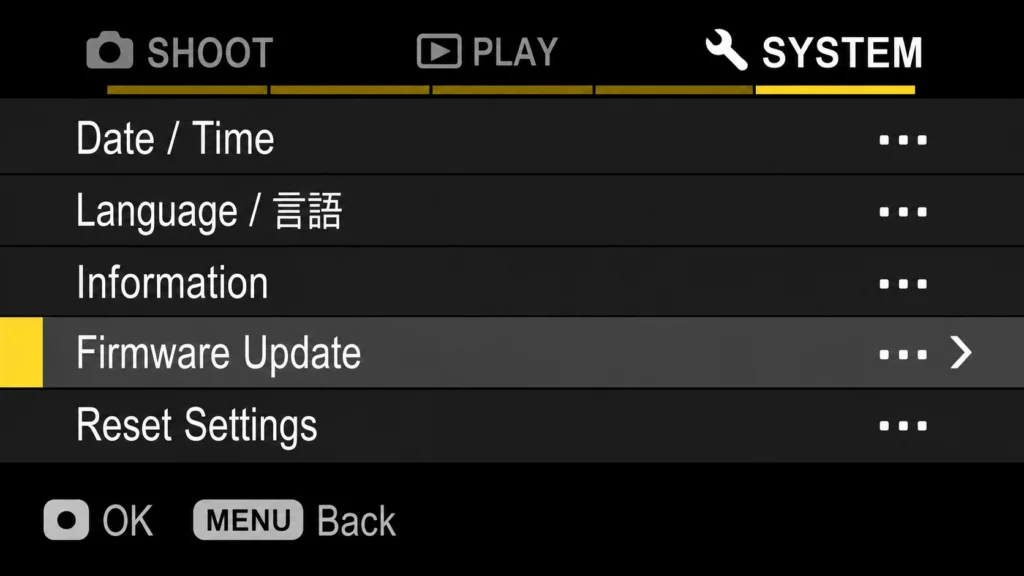
You can update Sigma lens models directly through a compatible camera body on many recent releases, with no extra hardware needed. This covers most requests for how to update Sigma lens firmware on supported mirrorless systems.
- Confirm the exact lens and mount supports an in-camera update.
- Attach the lens to the compatible camera body.
- Use a fully charged battery before starting.
- Download the required firmware following SIGMA or the camera maker’s instructions.
- Open the camera’s firmware or update menu.
- Select the lens firmware option where it’s available.
- Start the update and let it run without interruption.
- Do not remove the lens or power off the camera mid-process.
- Confirm the new firmware version once the update completes.
Menus and transfer steps vary across camera systems, so treat each brand separately. For the SIGMA BF and applicable L-Mount lenses, SIGMA’s documentation instructs users to attach the lens and open the camera’s Firmware Update menu directly. A Sigma lens update L-Mount combination like this follows different menu steps than a Sigma lens update Sony body, so match the instructions to your specific camera rather than assuming one process covers every brand.
How to Update a SIGMA Lens With USB Dock and Optimization Pro
Certain SIGMA lenses need the USB Dock and Optimization Pro software to complete a firmware update. This method usually applies to older or more specialized lens and mount combinations. Follow the steps below in order for a safe, complete update.
Confirm Your Lens and USB Dock Are Compatible
SIGMA makes multiple Dock products, including the UD-01 and UD-11, and compatibility varies by lens and mount. Not every SIGMA lens works with every Dock, so confirm the exact match before buying anything. See how the SIGMA USB Dock improves autofocus performance for a closer look at what the Dock enables beyond firmware.
Install or Update SIGMA Optimization Pro
Sigma Optimization Pro is SIGMA’s dedicated software for supported lenses. It handles firmware updates along with focus and lens customization settings. Install the latest version before connecting any hardware, since older software builds may not recognize newer lenses.
Attach the Lens to the Dock
Connect the lens to the compatible Dock, then connect the Dock to your computer. Confirm the connection feels secure before opening Optimization Pro.
Check for Available Firmware
Optimization Pro can show an update notification when new firmware exists for your specific combination. This detection step sits at the center of any Sigma USB Dock firmware update, so let the software finish scanning before proceeding.
Complete the Update Without Disconnecting the Lens
Keep the lens attached to the Dock until the software confirms the update is finished. Removing it early can interrupt the transfer and cause errors.
Can You Update a SIGMA Lens Without a USB Dock?
Sometimes. A USB Dock is not required for every SIGMA lens, and the correct method depends on your exact lens and mount combination.
Some lenses support updates through a compatible camera, or through a camera-to-computer procedure instead. Checking whether a Sigma lens firmware update without USB Dock option exists for your model can save both time and money. Older or highly specialized lenses may still require the Dock method, so confirm this on SIGMA’s official firmware page before deciding either way.
Do you always need a SIGMA USB Dock?
No. Some SIGMA lenses update directly through the camera. Use a USB Dock only when the official instructions for your exact lens and mount require or support it.
What Does a SIGMA Firmware Update Actually Fix?
A firmware update can improve compatibility, autofocus behavior, or fix a specific reported issue, but not every release changes the same thing.
Firmware updates may address:
- Compatibility with newer camera bodies
- Autofocus behavior and tracking
- Overall operational stability
- Focus-ring functions
- Exposure behavior
- Lens-to-camera communication
- Specific reported bugs
- Supported accessory functions
- Noise or performance issues
Don’t assume every update improves image quality or focus speed automatically. A recent SIGMA 35mm F1.2 DG II Art L-Mount update reduced focus-motor noise during video recording. A Sony E-Mount 30mm F1.4 update fixed a rare freeze issue tied to one specific camera body. Other SIGMA firmware releases have improved exposure consistency or continuous autofocus stability instead. Many photographers ask should I update Sigma lens firmware as soon as one becomes available. The safer habit is reading the exact release notes first, because what does lens firmware update do genuinely changes from one version to the next.
SIGMA Firmware Update Not Working? Check These Problems
Sigma firmware update not working usually traces back to a mount mismatch, a loose connection, or an unsupported combination.
SIGMA Optimization Pro Does Not Detect the Lens
When Sigma Optimization Pro not detecting lens happens, work through these checks in order:
- Confirm the Dock is compatible with your exact lens
- Confirm the lens and mount match your Dock model
- Check the USB cable and connection quality
- Update Optimization Pro to its latest version
- Reattach the lens firmly, checking the contact pins
A Sigma USB Dock not recognized by your computer often points to a driver, port, or cable issue rather than a lens fault, so test on another USB port first.
Camera Does Not Recognize the Firmware Update
Check the exact lens version, confirm the correct mount, and check your current camera firmware. Make sure the downloaded firmware file matches your exact update procedure.
Firmware Update Stops or Fails
Avoid repeatedly disconnecting and retrying without clear guidance, since this can worsen the problem. Check SIGMA’s exact recovery instructions, or contact authorized support if the update cannot finish safely.
Lens Works Differently After the Update
Check the camera body firmware, camera settings, and lens settings for changes. Review the release notes carefully, then test autofocus, stabilization, and any other affected functions. If focus issues persist outside a firmware context, see why autofocus stops working and how to fix it.
What If You Cannot Update the Lens Yourself in Pakistan?
If your exact combination is unsupported or the update keeps failing, contact SIGMA Pakistan support instead of experimenting further.
Reach out to authorized support if:
- Your exact lens isn’t supported by any available update method
- Optimization Pro cannot detect the lens after proper checks
- The update fails repeatedly despite following every instruction
- You feel unsure about performing the procedure yourself
SIGMA’s international firmware notices consistently direct users toward authorized support once standard methods stop working. As Pakistan’s authorized SIGMA distributor, Hope Enterprises and the SIGMA Pakistan service network can guide you toward the right update path, especially if you’re buying original SIGMA lenses with authorized warranty rather than risking an unofficial firmware install.
SIGMA Lens Firmware Update Checklist
Following this checklist keeps every Sigma lens firmware update safe, simple, and successful from start to finish.
| Before | During | After |
|---|---|---|
| Confirm exact lens and mount | Keep power connected | Check installed firmware version |
| Check camera firmware | Do not disconnect the cable | Test autofocus |
| Fully charge the battery | Do not remove the lens | Test affected functions |
| Choose the correct update method | Wait for completion confirmation | Review release notes |
Frequently Asked Questions
Do all SIGMA lenses need firmware updates?
No. SIGMA releases firmware only for specific lens and mount combinations. Update only when your exact model has an applicable release, not out of habit.
Do I need a USB Dock to update a SIGMA lens?
Not always. Many SIGMA lenses update directly through a compatible camera body. Older or specialized models may require the SIGMA USB Dock and Optimization Pro instead.
Is SIGMA Optimization Pro free?
Yes. SIGMA Optimization Pro is free software available on SIGMA’s official website. It supports firmware updates, focus adjustments, and lens customization for compatible SIGMA hardware and USB Docks.
Can firmware improve autofocus?
Sometimes. Some firmware updates address autofocus behavior, tracking speed, or camera compatibility. This only applies when explicitly stated in that specific update’s official release notes.
What happens if the update is interrupted?
An interrupted firmware update can prevent normal completion and leave the lens unresponsive. Never disconnect power intentionally. If interruption happens, follow SIGMA’s official support instructions immediately.
